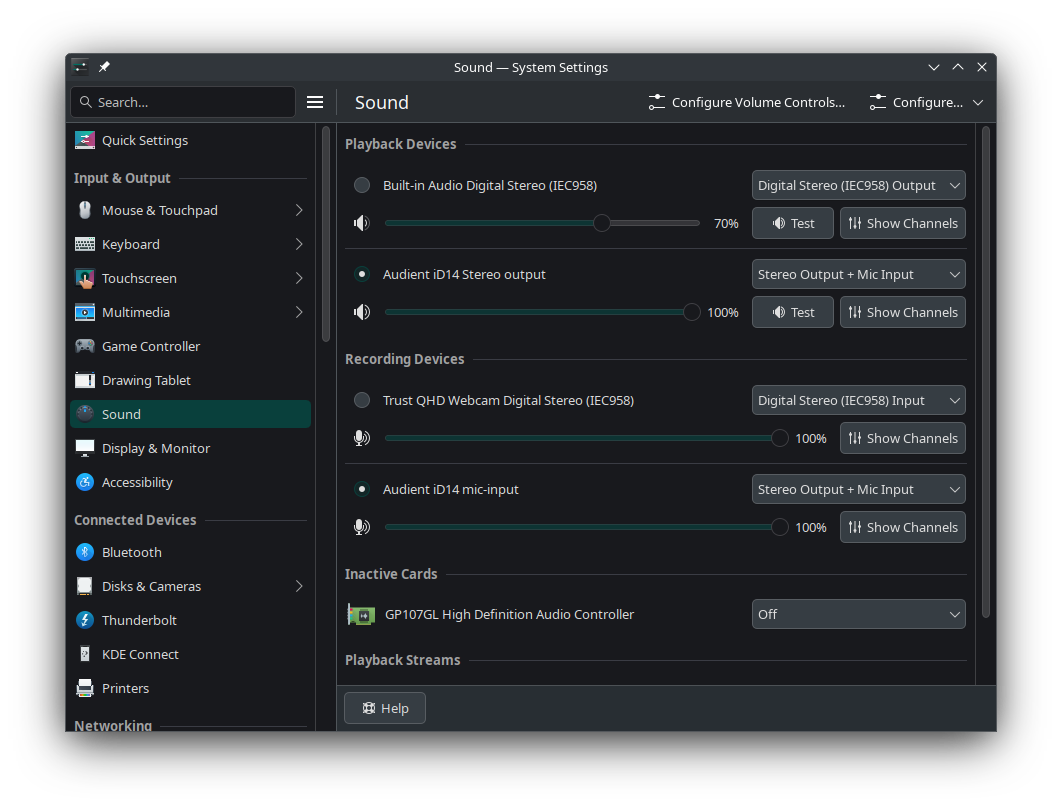
Overall I wouldn't recommend the Audient iD14 to Linux users because its compatibility out of the box is not good, but if you have one, it is possible to tweak it into working properly.
There are two problems with audio playback on the iD14.
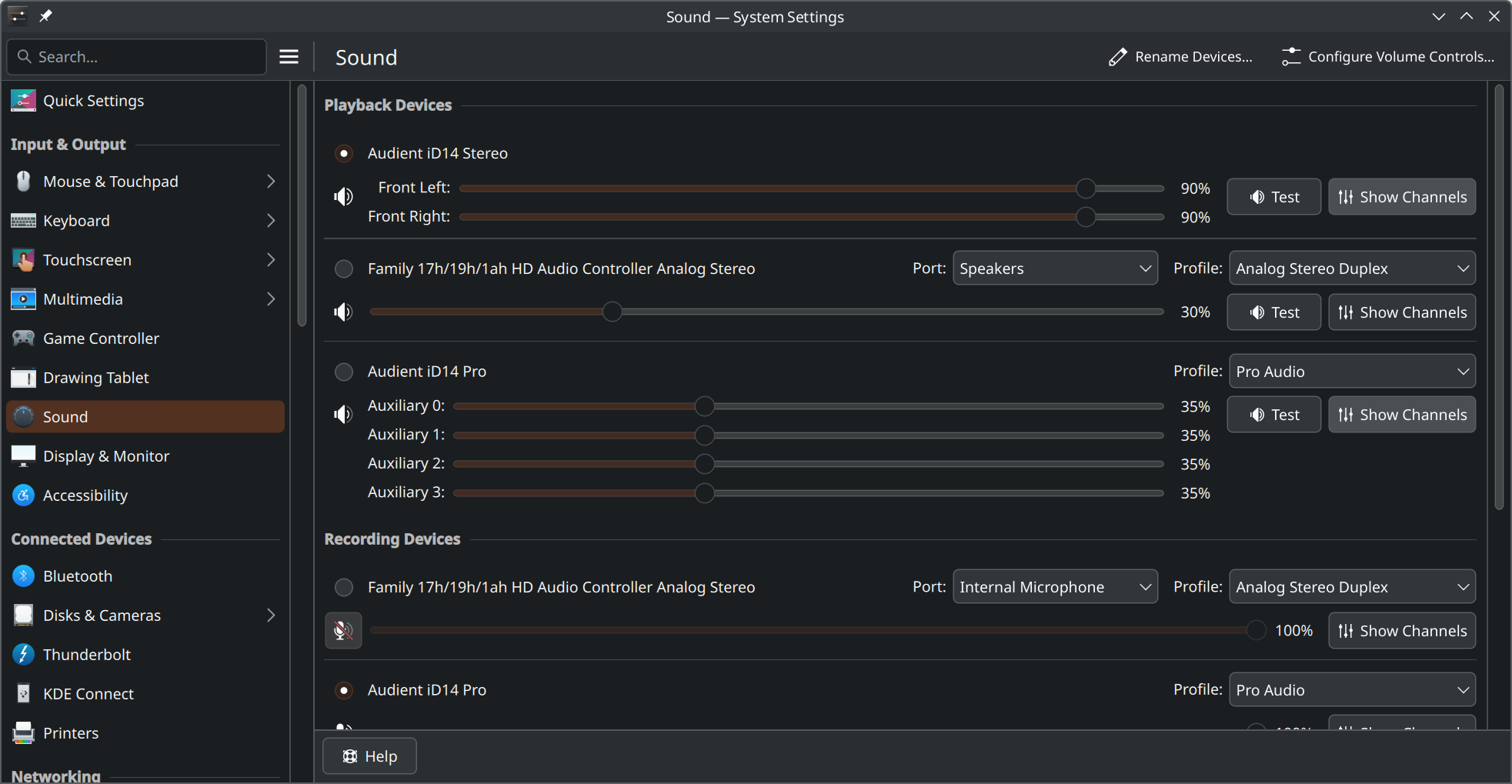
The first and most obvious is that the left and right channels are not balanced. At full volume they are equal but at lower volumes they are not.
The second and less obvious problem is that the iD14 gets treated as a 4 channel surround sound device. You might not notice this depending on your usage, but if you do, it's very annoying. It is likely recognised as a surround sound device because it has four output channels (headphones L+R, and speakers L+R), but this is really just two stereo outputs, not a four channel surround output.
Balancing left and right volume
Rebalancing the left and right channel audio volume can be done relatively easily in amixer by setting the output to 100%. This puts both channels at 100%. Note: this does not mean you need your volume at 100% - you can increase or decrease the volume as normal in KDE or in applications.
# ~/.local/bin/id14-channel-fix.sh
# --------------------------------

#!/usr/bin/env bash

card=$(aplay -l | grep 'iD14' | sed 's/:.*$//g'| sed 's/card //')
amixer -c $card sset 'Speaker' 100%
Put this in a file and set it to run at login in your desktop environment, and/or manually invoke when necessary.
(The most robust way would probably be to use a udev rule to invoke it when the hardware is connected and add a systemd wakeup hook to check if it had been connected during sleep, but that's beyond the scope of this article)
Remapping the surround channels to stereo
Both Pipewire and PulseAudio offer ways to remap the device channels into a new virtual device with only two channels.
Pipewire
Pipewire is fairly straightforward to configure.
Place the following in ~/.config/pipewire/pipewire.conf.d/id14.conf (create the directories if necessary).
# ~/.config/pipewire/pipewire.conf.d/id14.conf
# --------------------------------------------

context.modules = [
    {   name = libpipewire-module-loopback
        args = {
            node.description = "Audient iD14 Stereo"
            capture.props = {
                node.name = "iD14_Stereo"
                media.class = "Audio/Sink"
                audio.position = [ FL FR ]
            }
            playback.props = {
                node.name = "playback.iD14_Stereo"
                audio.position = [ FL FR ]
                target.object = "alsa_output.usb-Audient_Audient_iD14-00.analog-surround-40"
                stream.dont-remix = true
                node.passive = true
                priority.driver = 2000
                priority.session = 2000
            }
        }
    }
]
Restart pipewire with:
systemctl --user restart pipewire.service
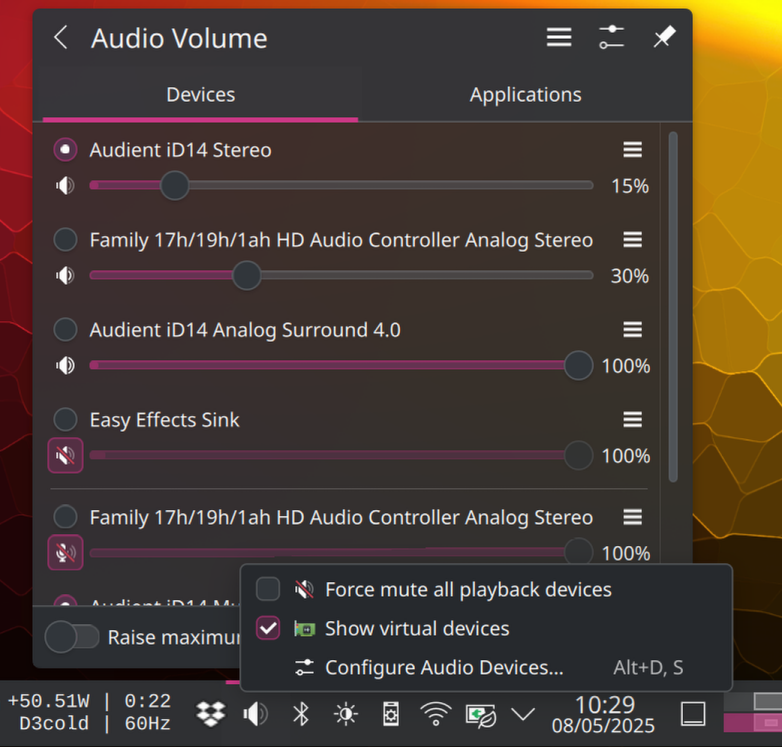
You should now have a virtual device called iD14 Stereo. The priority settings assign a higher priority to the virtual device than the hardware, meaning it should be selected for playback by default. The hardware device will still be visible.
If you find this doesn't show up in the tray widget, you will need to right click the icon and tick "Show virtual devices":
PulseAudio
I'm less sure of the PulseAudio config. I'm not sure that all of this is necessary or that it's the most straightforward way to achieve it, but it seems to work and I haven't tried simplifying it.
Firstly, in /etc/pulse/daemon.conf, set:
# /etc/pulse/daemon.conf
# ----------------------

enable-remixing = no
remixing-use-all-sink-channels = no
Then create a profile in PulseAudio:
/etc/pulse/profile-sets/audient-id14.conf
# /etc/pulse/profile-sets/audient-id14.conf
# -----------------------------------------

[General]
auto-profiles = no

[Mapping mic-input]
device-strings = hw:%f
channel-map = left,right,rear-left,rear-right
exact-channels = false
fallback = yes
priority = 1
direction = input

[Mapping stereo-output]
description = Stereo output
device-strings = hw:%f
channel-map = front-left,front-right
paths-output = analog-output
paths-input = analog-input
direction = output
priority = 1
exact-channels = false

[Profile output:stereo-output+input:mic-input]
description = Stereo Output + Mic Input
output-mappings = stereo-output
input-mappings = mic-input
priority = 100
skip-probe = no
Now create a udev rule to use this profile when the iD14 is connected:
/etc/udev/rules.d/91-pulseaudio-custom-profiles.rules
# /etc/udev/rules.d/91-pulseaudio-custom-profiles.rules
# -----------------------------------------------------

SUBSYSTEM=="sound", SUBSYSTEMS=="usb", ACTION=="change", KERNEL=="card*", ENV{ID_VENDOR}=="Audient", ENV{ID_MODEL}=="Audient_iD14", ENV{PULSE_PROFILE_SET}="/etc/pulse/profile-sets/audient-id14.conf"
And finally create a script to tie it all together and set the default device, and set it to run at login in your desktop environment, and/or manually invoke when necessary.
# ~/.local/bin/pulse-remap.sh
# ---------------------------

#!/bin/env bash

pacmd unload-module module-remap-source
pacmd load-module module-remap-source source_name=AudientiD14_mic master=alsa_input.usb-Audient_Audient_iD14-00.mic-input master_channel_map=front-right,front-right channel_map=front-left,front-right

pacmd unload-module module-remap-sink
pacmd load-module module-remap-sink sink_name=AudientiD14_headphones master=alsa_output.usb-Audient_Audient_iD14-00.stereo-output master_channel_map=left,front-right channel_map=front-left,front-right

pacmd set-default-sink AudientiD14_headphones
pacmd set-default-source AudientiD14_mic
Restart your PC, or reload udev and PulseAudio with:
sudo udevadm control --reload
sudo udevadm trigger --subsystem-match=sound
pulseaudio --kill